> For the complete documentation index, see [llms.txt](https://guides.stellaraio.com/stellar/llms.txt). Markdown versions of documentation pages are available by appending `.md` to page URLs; this page is available as [Markdown](https://guides.stellaraio.com/stellar/retailers/nike-fcfs.md).
# Nike (FCFS)
Complete guide on our Nike (FCFS) module
The **Nike module** supports **FCFS / Flow releases** for both **US and Canada**. This module is designed to monitor Nike product pages and react quickly to restocks or product availability, helping users secure items as soon as they become available.
For **US releases**, the module supports **fully automated checkout**, allowing tasks to add to cart and complete checkout automatically. For **Canada releases**, the module generates **cart links** which allow users to manually open the cart and complete checkout.
Nike Flow releases are typically **first come first served drops**, meaning speed and preparation are key. Monitor tasks are optimized to **detect product availability quickly**, allowing checkout tasks to trigger as fast as possible when stock appears.
This module focuses specifically on **Flow releases** rather than **Draw or Raffle entries**. Flow releases are significantly easier to run, require less setup, and are generally more beginner friendly compared to draw systems which require larger account preparation and longer setup processes.
## Preliminary Checklist
Before setting up tasks onNike(FCFS), make sure you have everything below prepared:
* **Profiles**
> Create and save your checkout [profiles](https://guides.stellaraio.com/stellar/navigating-stellaraio/what-is-the-profiles-tab/how-do-i-add-a-profile) under the **Profiles tab** in Stellar. These contain your billing, shipping and payment info.
* **Proxies**
> - High-quality **ISP** or **Residential** proxies are required.
> - Low-quality or flagged proxies will cause **Antibot-related errors.**
> - For reliable performance, consider using **Stella Proxies ISPs or Residentials.**
> * If you're looking for proxies, check out [Stella Proxies](https://guides.stellaraio.com/stellar/getting-started-with-stellaraio/stella-proxies) for high quality ISP and Residential proxies. As always, it's recommended to have multiple proxy providers, don't just rely on one.
* **Accounts (Sessions)**
> - Accounts are needed for US but not needed for Canada
* **IMAP (Highly Recommended)**
> - Lets Stellar automatically pull Nike verification codes from your email.
> - Low-quality or flagged proxies will cause **Antibot-related errors.**
> - For reliable performance, consider using **Stella Proxies ISPs or Residentials.**
* **Cook Group Access**
> Optional but recommended. Your [cook group](https://guides.stellaraio.com/stellar/getting-started-with-stellaraio/cook-groups) can help you find product URLs, SKUs and early restock alerts.
### Task Overview
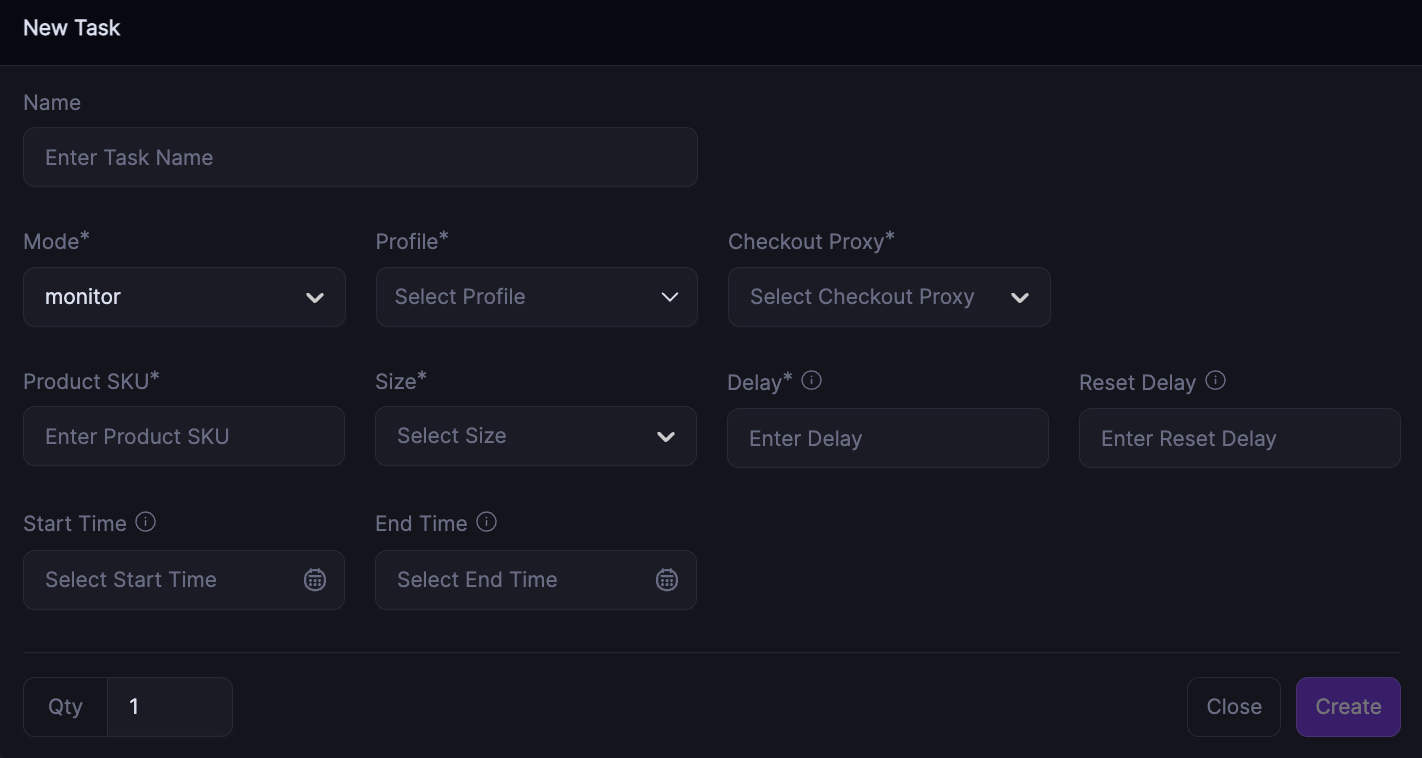
### Monitor Mode
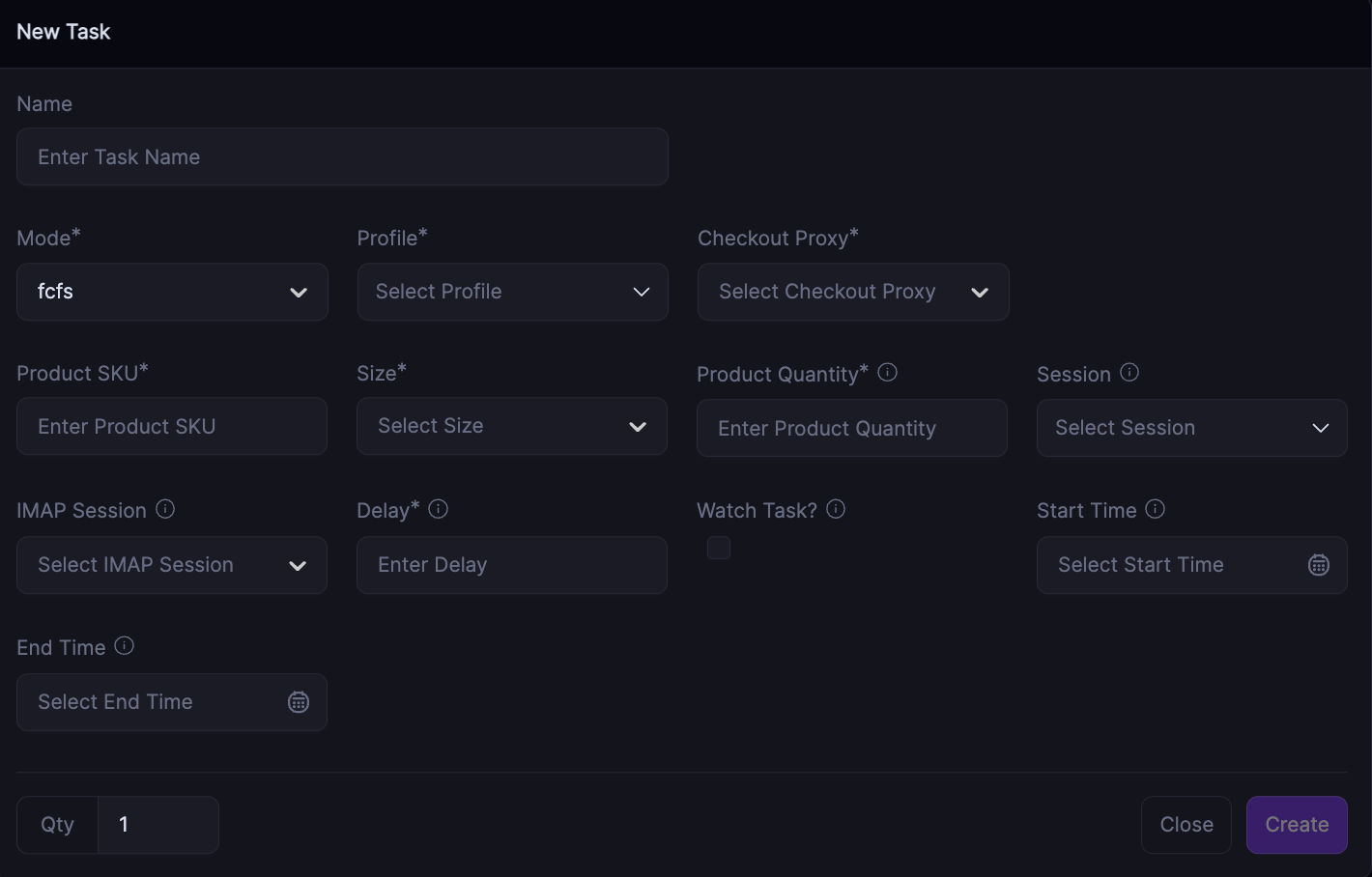
## FCFS Mode
* What **Mode** do I use?
* Monitor mode is used to check for product availabilty
* FCFS mode **requires** an account to checkout for **US**, guest works for **CA ONLY.**
* What does **Profile** mean?
* Select a **Profile** you want to use and that profile information will be used when checking out items
* What type of **Proxies** should I use?
* All types of proxies from DCs to ISPs to Resis can be used for monitor, ISPs is recommended for checkout(FCFS) tasks
* What's **SKU**?
* A SKU is a unique ID for a specific Nike item. You can find the SKU in the product page or from your [cookgroup](/stellar/getting-started-with-stellaraio/cook-groups.md).
You can only enter one SKU per task
* What **Quantity** do I use?
* There may have quantity limits for certain hyped products (if so, set it to those) Overall it is recommended to use 1
* What **Delay** should I use?
* we recommend to start with 3000 delay and adjust as needed.
* What is **Monitoring Delay**?
* The time in milliseconds before retrying when an item is back in stock. `3000` is OK which would be 3 seconds
* What is **Discount**?
* If you have a discount code, you can enter it in this field
* What is **Watch Task?** box?
* Using watch task will help your proxies encounter less proxy bans and less proxy errors overall. Using a watch task essentially means you want your task to rely on other sources to monitor, in this case your monitor mode task will ping the watch task when a restock has happened
* If you check this box, your task will wait for a monitor mode task to ping it then it'll proceed to add item to cart and checkout
* If this box is unchecked, your task will monitor the sku, add to cart and checkout
---
# Agent Instructions
This documentation is published with GitBook. GitBook is the documentation platform designed so that both humans and AI agents can read, navigate, and reason over technical content effectively. Learn more at gitbook.com.
## Querying This Documentation
If you need additional information that is not directly available in this page, you can query the documentation dynamically by asking a question.
Perform an HTTP GET request on the current page URL with the `ask` query parameter, and the optional `goal` query parameter:
```
GET https://guides.stellaraio.com/stellar/retailers/nike-fcfs.md?ask=&goal=
```
`ask` is the immediate question: it should be specific, self-contained, and written in natural language.
`goal` is optional and describes the broader end goal you are ultimately trying to accomplish on behalf of the user. GitBook uses it to tailor the answer towards what is most useful for that goal.
The response will contain a direct answer to the question and relevant excerpts and sources from the documentation.
Use this mechanism when the answer is not explicitly present in the current page, you need clarification or additional context, or you want to retrieve related documentation sections.