> For the complete documentation index, see [llms.txt](https://guides.stellaraio.com/stellar/llms.txt). Markdown versions of documentation pages are available by appending `.md` to page URLs; this page is available as [Markdown](https://guides.stellaraio.com/stellar/retailers/magic-madhouse.md).
# Magic Madhouse
Complete guide on our Magic Madhouse module
### **Preliminary Checklist**
Before setting up tasks on Magic Madhouse make sure you have everything below prepared:
### **Profiles**
> Create and save your checkout [profiles](/stellar/navigating-stellaraio/what-is-the-profiles-tab/how-do-i-add-a-profile.md) under the **Profiles tab** in Stellar. These contain your billing, shipping and payment info.
### **Proxies**
> * **ISP proxies** – recommended for monitor and checkout.
> * **Residential proxies** – IIssues with checkout task, switch to residentials.
> * Save both proxy groups under the **Proxies tab** in Stellar.
> * If you're looking for proxies, check out [Stella Proxies](https://guides.stellaraio.com/stellar/getting-started-with-stellaraio/stella-proxies) for high quality ISP and Residential proxies. As always, it's recommended to have multiple proxy providers, don't just rely on one.
### Task Overview
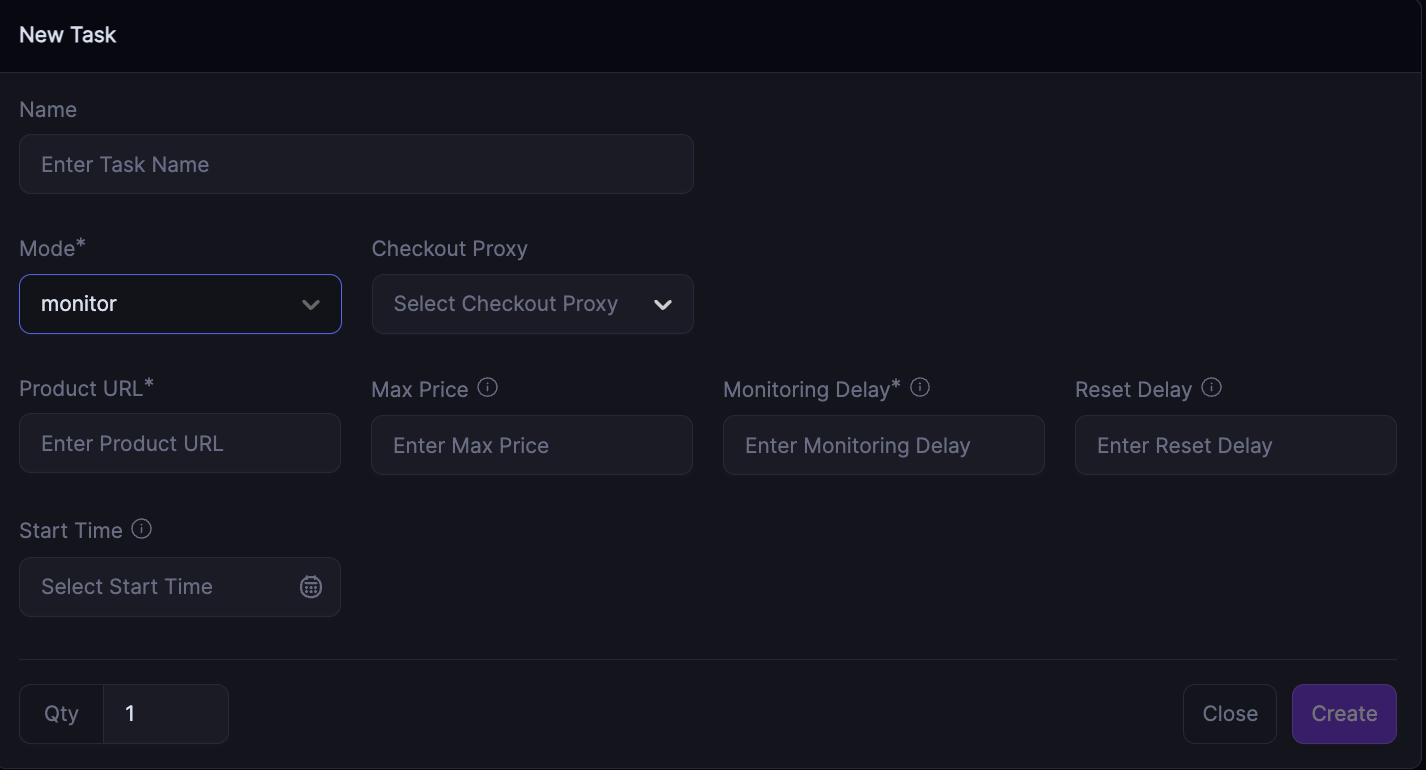
### Monitor Mode
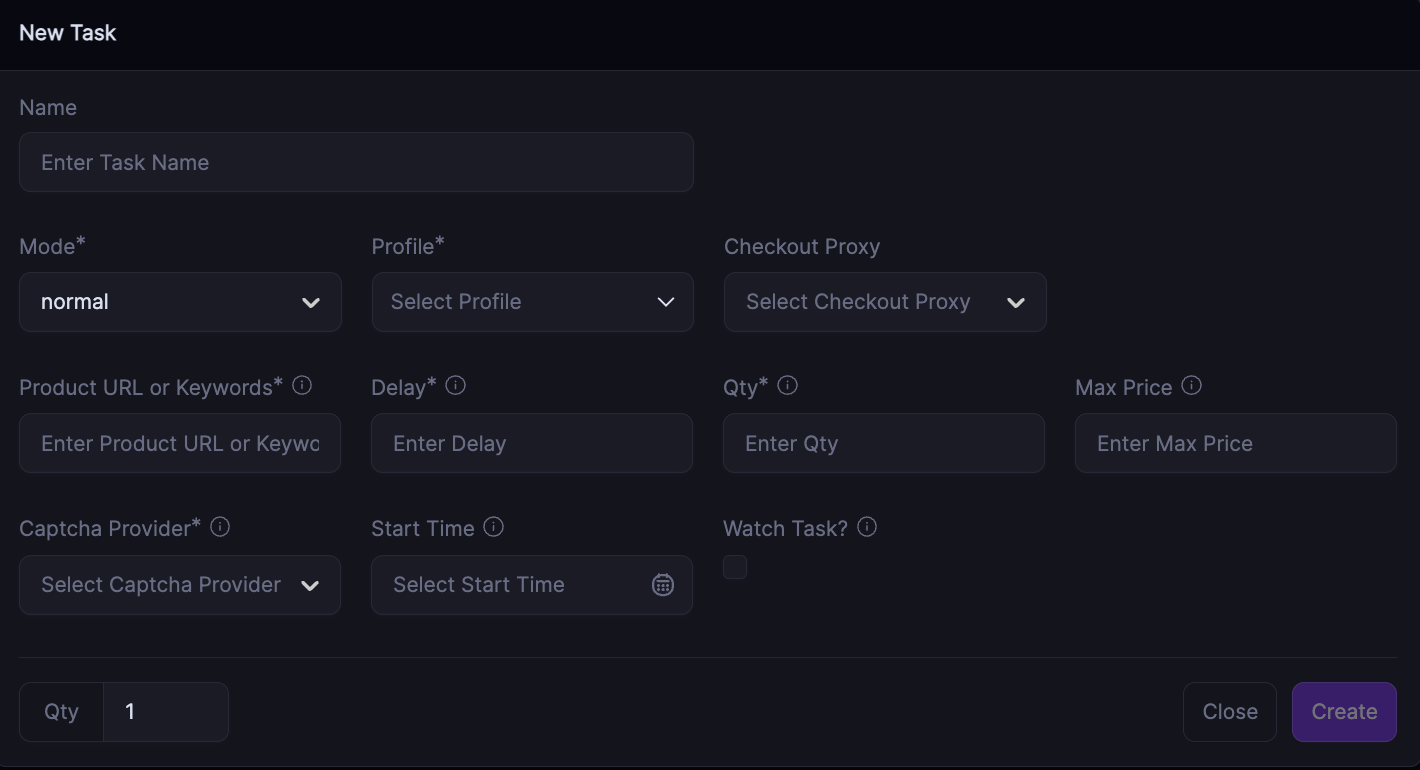
### **Normal Mode**
* What **Mode** do I use?
* **Normal** - is your checkout task to be used for shipping.
**Monitor** - used for monitoring stock changes, will ‘wake up’ your normal tasks as long as they’re set to watch tasks.
* What does **Profile** mean?
* Select a **Profile** you want to use and that profile information will be used when checking out items
* What type of **Proxies** should I use?
* You need high quality proxies, ideally ISP. You can use most good ISP’s for monitoring and checkout. If you notice proxy errors, in the first instance try different ISP’s, and if you have to switch checkout (normal) to residential first. Always test on an instock item.
* How do I find the **Product URL**?
* Full URL, taken directly from the website. I.e
* What is **QTY**?
* The number of items you want in one order.
* What is a good **QTY** to use?
* The best QTY to use is 1 but if the item you're running for allows for more QTY per cart, feel free to increase the QTY
* What is **Delay**?
* The time in milliseconds the bot will retry to checkout after it encounters an error. The time also in milliseconds the bot will refresh on monitor and check again for stock.
* What **Delays** should I use?
* We recommend running around 5000 delays for restocks.
* What is a good **QTY** to use?
* **Normal task** - Recommend 2000-3000 delay.
* **Monitor** - Recommend 5-10k (especially if running longer periods of time).
\*With all delays, it’s about trial and error. If you notice tasks leading to errors, adjust delays i.e +1k on top.
* What is a **Session**?
* This is your account, you can either match yourself i.e if the profile for this task is then the session needs to be that same email. You can also leave the session blank and bot will auto match.
* What is W**atch Task**?
* Select this on your normal task, the task will ‘sleep’ and start attempting checkout once your monitor task finds stock.
* What is **Captcha Provider**?
* The automated or in house solver. We **recommend** capsolver or capmonster (you will need a balance on these services, and you’ll also need to make sure the **API keys** are added to Bot settings - Captcha.
You don’t need both.
* You can opt for bot solver, if you have an aged and high scoring gmail account, however currently it’s **recommended** to opt for capsolver or capmonster first. Trial and error.
* What is M**ax Price**?
* Magic Madhouse are known to hike prices up after release, use max price to monitor for stock at RRP. Ask your cookgroup for more information on prices if you’re not aware.
### Important notes:
* You don’t have to run monitor mode if you’re aware of when a drop is or should be happening.
* Use monitor mode to reduce proxy usage and stress and run for longer periods of time 24/7
**Monitor** - used for monitoring stock changes, will ‘wake up’ your normal tasks as long as they’re set to watch tasks.
* Do run with max price - this is important to prevent over RRP checkouts.
* Magic Madhouse is optimised for speed, and if the product is already in stock, watch task is ignored and it will go straight to checkout for fastest speeds.
###
---
# Agent Instructions
This documentation is published with GitBook. GitBook is the documentation platform designed so that both humans and AI agents can read, navigate, and reason over technical content effectively. Learn more at gitbook.com.
## Querying This Documentation
If you need additional information that is not directly available in this page, you can query the documentation dynamically by asking a question.
Perform an HTTP GET request on the current page URL with the `ask` query parameter, and the optional `goal` query parameter:
```
GET https://guides.stellaraio.com/stellar/retailers/magic-madhouse.md?ask=&goal=
```
`ask` is the immediate question: it should be specific, self-contained, and written in natural language.
`goal` is optional and describes the broader end goal you are ultimately trying to accomplish on behalf of the user. GitBook uses it to tailor the answer towards what is most useful for that goal.
The response will contain a direct answer to the question and relevant excerpts and sources from the documentation.
Use this mechanism when the answer is not explicitly present in the current page, you need clarification or additional context, or you want to retrieve related documentation sections.