> For the complete documentation index, see [llms.txt](https://guides.stellaraio.com/stellar/llms.txt). Markdown versions of documentation pages are available by appending `.md` to page URLs; this page is available as [Markdown](https://guides.stellaraio.com/stellar/navigating-stellaraio/what-is-the-settings-tab/catchall-email-guide.md).
# Catchall Email Guide
Complete guide on Catchall Email
What Is a Catchall Email?
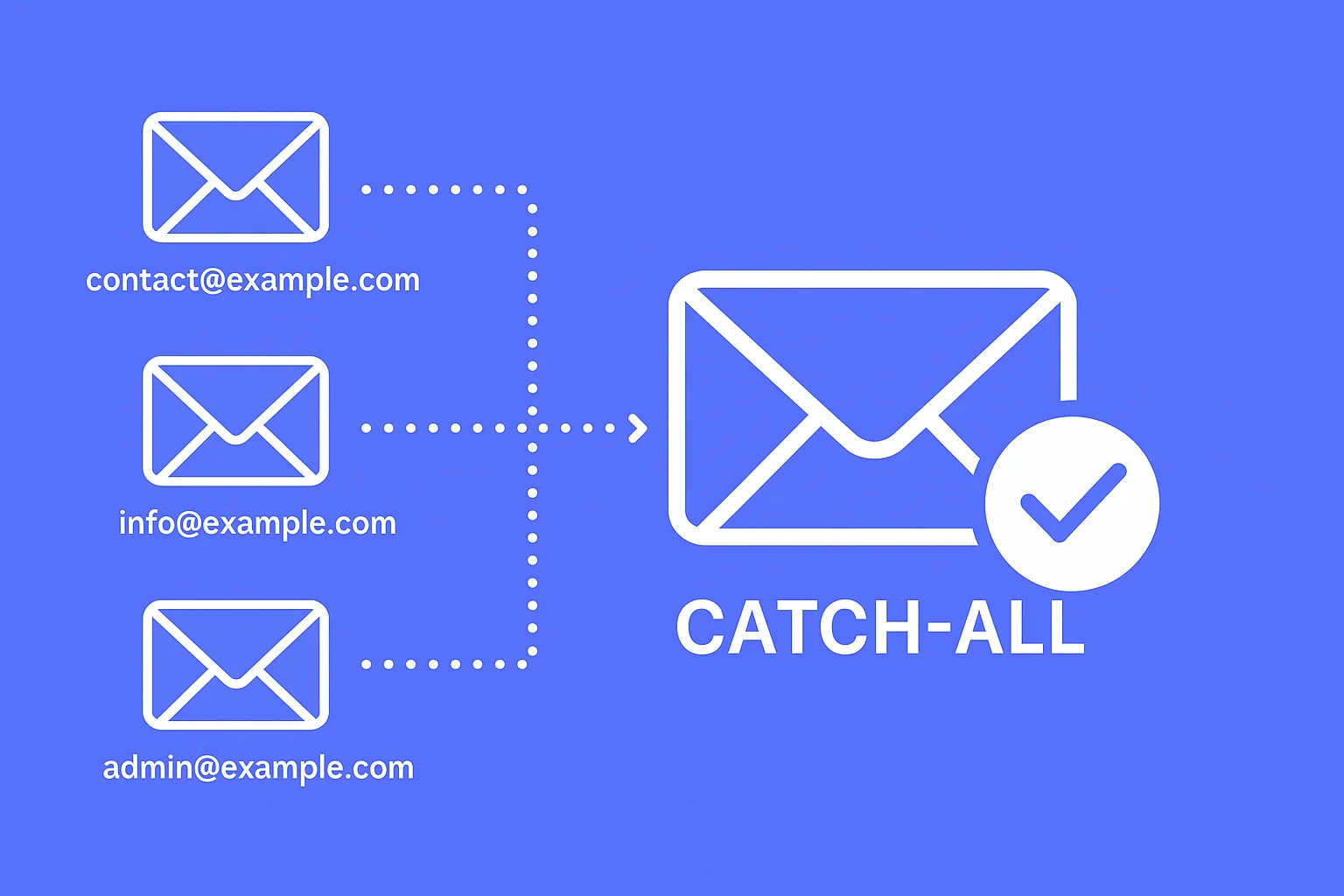
A **catchall email** is an email setup that receives **all emails sent to any address at your domain** and forwards them to one main inbox.
Example:
* You own the domain `example.com`
* Emails sent to:
* `test@example.com`
* `order123@example.com`
* `randomemail@example.com`
* All of them are delivered to **one inbox you choose**
This is extremely useful for:
* Creating many store accounts
* Account generators
* IMAP verification
* Keeping all verification emails in one place
***
### Important Notes Before You Start
* There are multiple providers that support catchalls
* Some websites may **detect certain catchall providers**
* Example:
* Walmart has been reported to detect **Namecheap catchalls**
* Google-based domain forwarding may perform better on some sites
* We recommend testing and asking your cook group what works best for the site you’re running
***
### How to Create a Catchall Email (Two Common Methods)
***
### Option 1: Namecheap Catchall Setup
#### Step 1: Buy a Domain
1. Go to `https://www.namecheap.com`
2. Search for a domain name you want
3. If your first choice is unavailable, try:
* Adding numbers
* Changing extensions (.com, .net, .io, etc.)
4. Purchase the domain
***
#### Step 2: Enable Catchall Forwarding
1. Log into your Namecheap account
2. Click your profile icon (top right)
3. Go to your **Domain List**
4. Click **Manage** next to your domain
5. Scroll to the **Email** section
6. Find **Redirect Email**
7. Click **Add Catchall**
8. Enter the **primary email** where all emails should be forwarded
9. Save the changes
***
#### Step 3: Add Catchall to Stellar
* Open Stellar
* Go to **Settings**
* Find the **Catchall** field
* Enter only the domain name\
Do **not** include `@`
Example:
* Domain: `chase35x.com`
* Enter in Stellar:\
`chase35x.com`
***
### Option 2: Google / Google-Style Domain Catchall
This method is often preferred for better deliverability on certain sites.
***
#### Step 1: Buy a Domain
1. Purchase a domain from a provider that supports email forwarding
2. Complete the domain checkout
***
#### Step 2: Enable Catchall Forwarding
1. Go to your domain provider dashboard
2. Navigate to **Email Settings** or **Email Forwarding**
3. Create a forwarding rule:
* Alias / Recipient: `*`
* Destination: your main email inbox
4. Save the changes
The `*` means **all emails sent to this domain will be forwarded**.
***
#### Step 3: Add Catchall to Stellar
* Enter only the domain name into Stellar
* Do not include `@`
Example:
* Domain: `test.bike`
* Enter in Stellar:\
`test.bike`
***
### How Catchalls Are Used in Stellar
* Used for account generators
* Used for manual or automated account creation
* Used with IMAP for auto-verification
* Allows unlimited unique emails like:
* `nike1@yourdomain.com`
* `nike2@yourdomain.com`
* `nike3@yourdomain.com`
All emails still go to one inbox.
***
### Best Practices
* Always test your catchall with a **real signup email**
* Make sure forwarding works before a drop
* Keep IMAP connected if using auto verification
* Ask your cook group which provider works best for each site
***
### Beginner Recommendation
If you’re new:
1. Start with one catchall domain
2. Test it on one site first
3. Pair it with IMAP for smooth verification
4. Expand once confirmed working
***
### Catchall + IMAP Pairing Guide
Pairing a **catchall domain** with **IMAP** allows Stellar to automatically read verification emails and enter codes for you. This is the most reliable and hands-free setup for account creation, logins, and checkout verification.
***
### Why Use Catchall + IMAP Together?
Using both together allows you to:
* Create unlimited unique emails from one domain
* Receive all verification emails in one inbox
* Automatically read verification codes
* Reduce manual input during drops
* Speed up account creation and logins
This setup is **strongly recommended** for:
* Account generators
* Sites that send OTP or verification emails
* Faster task startup
* Large account setups
***
### Step 1: Create Your Catchall Domain
Before setting up IMAP, make sure:
* Your catchall domain is working
* Emails sent to `anything@yourdomain.com` are forwarding correctly
* All emails land in **one main inbox**
If this is not confirmed yet, complete the Catchall Guide first.
***
### Step 2: Choose Your IMAP Inbox
Your IMAP inbox must be:
* The inbox receiving **all forwarded catchall emails**
* An email provider that supports IMAP access
Recommended email providers:
* Gmail (most common and reliable)
* Outlook / Hotmail
* Custom domain inboxes with IMAP support
***
### Step 3: Add IMAP Session in Stellar
1. Open **Stellar**
2. Go to **Settings**
3. Navigate to the **IMAP** section
4. Click **Add IMAP Session**
5. Enter your email credentials:
* Email address (the inbox receiving catchall mail)
* App password or IMAP password (recommended over main password)
6. Save the IMAP session
Once saved, Stellar can now read verification emails automatically.
***
### Step 4: Verify IMAP Is Working
To confirm your IMAP setup:
1. Send a test email to:
* `test@yourcatchalldomain.com`
2. Check that:
* The email arrives in your IMAP inbox
* Stellar does not show IMAP connection errors
If the email arrives correctly, your setup is good.
***
### Step 5: Use Catchall Emails in Profiles
When creating Profiles or Accounts:
* Use unique emails like:
* `walmart1@yourdomain.com`
* `walmart2@yourdomain.com`
* `targetcheckout@yourdomain.com`
All emails will still arrive in the same inbox and be read by IMAP.
***
### Step 6: Select IMAP Session in Tasks
When creating tasks:
1. Find the **IMAP Session** field
2. Select the IMAP session you created
3. Start the task
Stellar will now:
* Automatically read verification emails
* Automatically enter codes when possible
* Reduce or eliminate manual popups
***
### What If You Don’t Select an IMAP Session?
If no IMAP session is selected:
* Stellar will prompt you to **manually enter verification codes**
* A window will open when a code is required
* You must:
* Have Google Chrome installed
* Have at least one captcha harvester created
IMAP is optional, but recommended for smoother operation.
***
### Best Practices for Catchall + IMAP
* Always test IMAP before a big drop
* Keep your inbox clean to avoid delays
* Avoid email providers that heavily filter forwarded mail
* Use app passwords when possible for better security
* Don’t reuse the same exact email for every account
***
### Common Beginner Mistakes to Avoid
* Entering the catchall domain with `@` in Stellar
* Using an inbox that doesn’t support IMAP
* Forgetting to select IMAP session in tasks
* Using the same email address for every account
* Not testing verification before drop time
***
### Recommended Setup Summary
For best results:
* One catchall domain
* One clean IMAP inbox
* Unique emails per account
* IMAP session selected in all supported tasks
This setup gives you the fastest, cleanest, and most automated experience in Stellar.
---
# Agent Instructions
This documentation is published with GitBook. GitBook is the documentation platform designed so that both humans and AI agents can read, navigate, and reason over technical content effectively. Learn more at gitbook.com.
## Querying This Documentation
If you need additional information that is not directly available in this page, you can query the documentation dynamically by asking a question.
Perform an HTTP GET request on the current page URL with the `ask` query parameter, and the optional `goal` query parameter:
```
GET https://guides.stellaraio.com/stellar/navigating-stellaraio/what-is-the-settings-tab/catchall-email-guide.md?ask=&goal=
```
`ask` is the immediate question: it should be specific, self-contained, and written in natural language.
`goal` is optional and describes the broader end goal you are ultimately trying to accomplish on behalf of the user. GitBook uses it to tailor the answer towards what is most useful for that goal.
The response will contain a direct answer to the question and relevant excerpts and sources from the documentation.
Use this mechanism when the answer is not explicitly present in the current page, you need clarification or additional context, or you want to retrieve related documentation sections.